LinXPaint
A downloadable tool for Linux
LinXPaint is a native Linux raster image editor designed to bring a fast, familiar, Paint.NET-inspired editing workflow to the Linux desktop.
Built with GTK 3 and designed around layers, selections, live editing, responsive previews, customizable brushes, advanced drawing tools, image adjustments, effects, plugins, and large-image handling, LinXPaint provides the tools needed for everyday photo editing, digital art, game assets, textures, sprites, graphics, maps, UI artwork, and general image creation without requiring a Windows installation.
LinXPaint combines an approachable interface with considerably deeper editing capabilities underneath, including non-destructive live tool previews, nested layer groups, sophisticated selection transforms, custom brushes, a native layered project format, automatic crash recovery, tablet pressure support, background processing, and a complete third-party plugin system.
CURRENT VERSION
LinXPaint 0.16.30
Designed for Linux
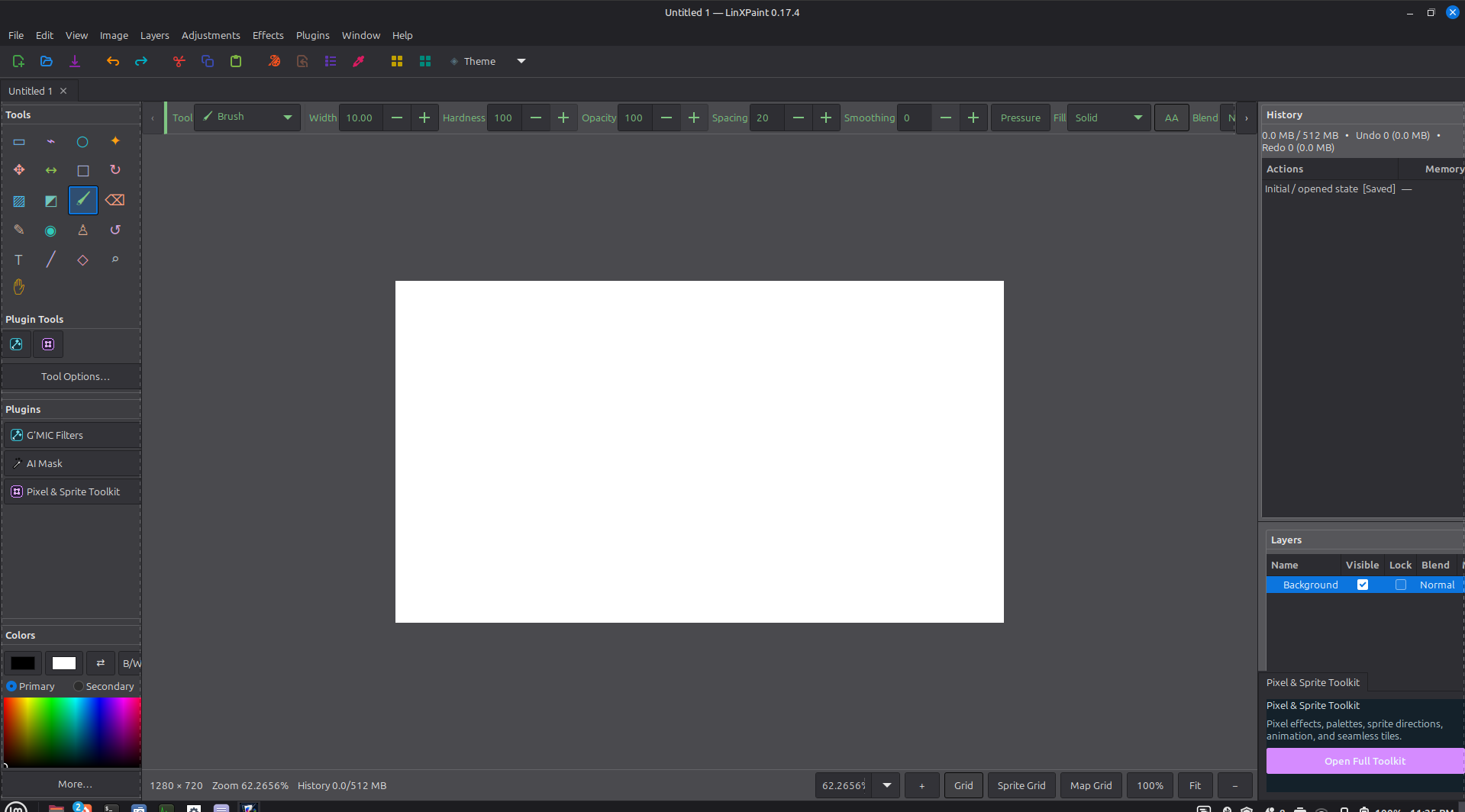
Default new image size: 1280 × 720
Custom image dimensions are fully supported, and new images automatically fit themselves to the available workspace.
PAINT.NET-INSPIRED WORKSPACE
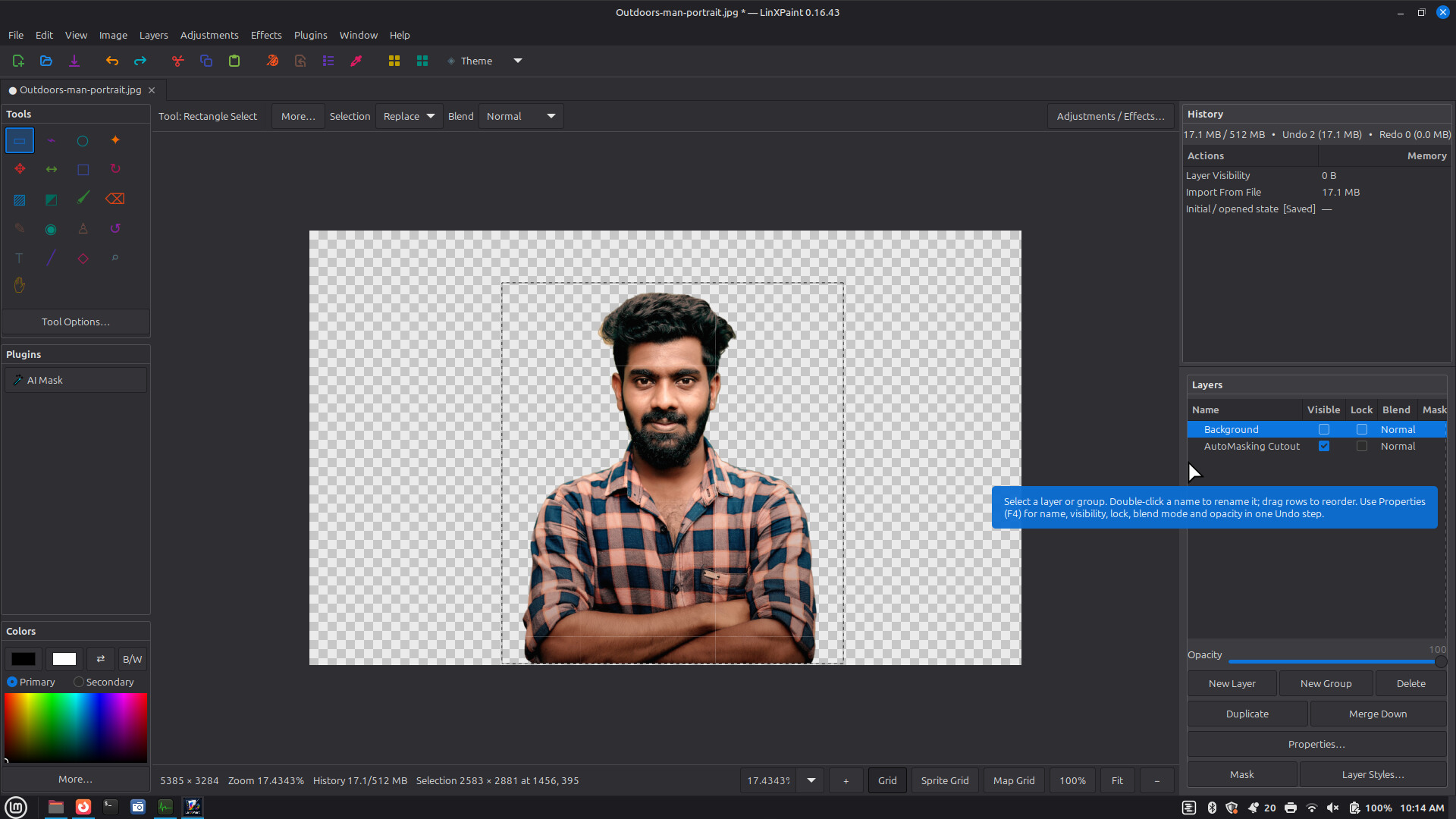
LinXPaint uses a familiar image-editor layout designed to keep the canvas central while providing quick access to the tools that matter most.
Interface features include:
- Multi-document tabbed editing
- Independent editing state for every open document
- Paint.NET-inspired Tools, History, Layers, and Colors utilities
- Compact left-side tool rail
- Dedicated Plugins quick-access area
- Context-sensitive Tool Options
- Adjustment and Effects workspace
- Command toolbar for common actions
- Bottom status and zoom controls
- Active-tool highlighting
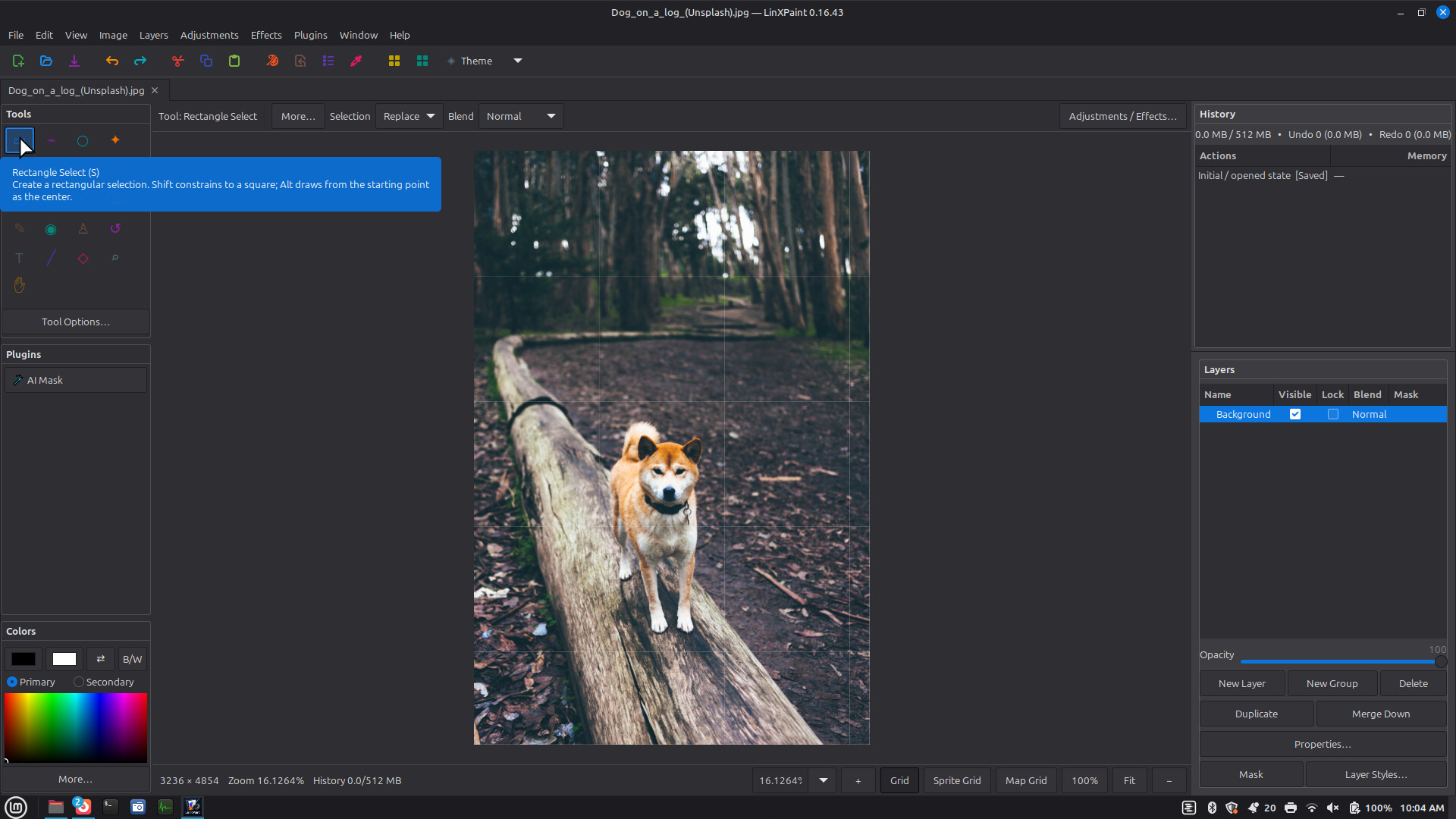
- Comprehensive tooltips
- Keyboard shortcuts for common editing operations
- Hide/show Tools, History, Layers, and Colors utilities
- Resettable utility layout
- Small-display-friendly interface design
- Horizontally scrollable tool options when required
- Automatic canvas fitting for new images
Two built-in interface themes are included:
- Linux Mint
- Color Coded
The Color Coded theme gives each of LinXPaint's 21 toolbox tools its own recognizable icon color for faster visual identification.
Theme selection is remembered between sessions.
21 COMPLETE TOOLBOX TOOLS
LinXPaint includes 21 primary editing and navigation tools:
- Paintbrush
- Pencil
- Eraser
- Paint Bucket
- Gradient
- Color Picker
- Clone Stamp
- Recolor
- Text
- Line / Curve
- Shapes
- Rectangle Selection
- Ellipse Selection
- Lasso Selection
- Magic Wand
- Move Selected Pixels
- Move Selection
- Transform Selection
- Rotate Selection
- Zoom
- Pan
PAINTBRUSH SYSTEM
LinXPaint includes a highly configurable brush engine suitable for painting, drawing, shading, texturing, and game-asset creation.
Brush controls include:
- Fractional brush sizes
- Hardness
- Opacity
- Brush spacing
- Stroke smoothing
- Antialiasing
- Tablet-pressure-controlled brush sizing
- Adjustable minimum pressure size
- Primary and Secondary color painting
- Left-click Primary color
- Right-click Secondary color
- Live brush-tip cursor
- Two-color patterned brush fills
- Custom brush-tip importing
- Per-brush blend modes
Nine ready-to-use brush presets are included:
- Standard Round
- Soft Airbrush
- Ink Nib
- Marker
- Bristle Paint
- Chalk
- Spray
- Star Stamp
- Cross Stamp
Built-in brush-tip shapes include:
- Round
- Square
- Diamond
- Horizontal Oval
- Vertical Oval
- Calligraphy Nib
- Star
- Cross
- Bristle
- Chalk
- Spray
- Imported Custom brush tips
Imported brush artwork can be converted into usable brush coverage masks, including opaque RGB and RGBA artwork.
BRUSH FILL PATTERNS
Brush and drawing operations can use patterned Primary/Secondary color fills including:
- Solid
- Horizontal
- Vertical
- Forward Diagonal
- Backward Diagonal
- Cross
- Diagonal Cross
- Checker
PENCIL
For pixel art and precision editing, the Pencil provides:
- True one-pixel drawing
- Hard pixel edges
- Primary color with left-click
- Secondary color with right-click
- Exact high-zoom placement
- Pixel-grid compatibility
- Full Undo/Redo support
ERASER
The Eraser removes pixels directly to transparency and supports:
- Adjustable size
- Hardness
- Pressure sensitivity
- Alpha-aware erasing
- Correct edge handling
- Transparent RGB cleanup
- Undo/Redo
PAINT BUCKET
The Paint Bucket is considerably more advanced than a simple one-click flood fill.
Features include:
- Live editable source point
- Adjustable tolerance
- Channel-aware matching
- Contiguous flood filling
- Global matching
- Primary or Secondary color
- Selection clipping
- Live adjustment before committing
- Cancel without altering the document
- Full blend-mode support
- One-step Undo
GRADIENT TOOL
LinXPaint includes seven gradient families:
- Linear
- Linear Reflected
- Diamond
- Radial
- Conical
- Spiral Clockwise
- Spiral Anticlockwise
Gradient controls include:
- Live editable start and end handles
- Color gradients
- Transparency gradients
- No Repeat
- Wrapped Repeat
- Reflected Repeat
- Reverse Gradient
- Right-drag reversal
- Overall opacity
- Blend modes
- Selection clipping
- Multiple editable color stops
- RGBA gradient stops
- Adjustable stop positions
- Add and remove custom stops
Included gradient presets:
- Primary → Secondary
- Primary → Transparent
- Black → White
- Rainbow
- Warm
- Cool
- Custom Stops
Gradient changes remain live until finished or canceled.
COLOR PICKER
The Color Picker provides:
- Visible composite sampling
- Multiple sampling sizes
- Alpha-aware sampling
- Primary assignment with left-click
- Secondary assignment with right-click
- Edge-safe image sampling
CLONE STAMP
The Clone Stamp can copy pixels from one area of an image into another.
Features include:
- Ctrl+click source selection
- Source marker
- Aligned cloning
- Source reset behavior
- Brush-size control
- Pressure support
- Alpha-aware cloning
- Selection clipping
- Undo/Redo
- Brush profile retention
RECOLOR TOOL
The Recolor tool lets you replace one color while retaining the original shading and detail.
Features include:
- Sample-based recoloring
- Primary/Secondary colors
- RGBA tolerance matching
- Adjustable tolerance
- Brush size
- Hardness
- Opacity
- Local shading preservation
- Premultiplied alpha matching
- Straight alpha matching
- Two alpha/tolerance matching modes
ADVANCED TEXT TOOL
LinXPaint's Text tool supports real editable text placement rather than simply dropping an immediately flattened string onto the image.
Text features include:
- Direct canvas text placement
- Direct canvas typing
- Dedicated multiline text editor
- Live text preview
- Full installed system and user font discovery
- Font family search/selection
- Manual font-family entry
- Refresh Fonts command
- Automatic style-aware font matching
- Bold
- Italic
- Underline
- Strikeout
- Left alignment
- Center alignment
- Right alignment
- Pixel-based font sizing
- Point-based font sizing
- Configurable DPI for point sizes
- Metric-based line spacing
- Character tracking
- Multiline text
- Optional text wrapping
- Resizable text boxes
- Editable text-box width
- Smooth antialiased rendering
- Aliased / pixel-crisp rendering
- Live movement handles
- Live width handles
- Primary or Secondary text color
- Finish or Cancel workflow
- Ctrl+Enter to finish
- Escape to cancel
LinXPaint automatically discovers installed fonts through the Linux font system and attempts to select the appropriate Bold and Italic font faces.
LINE AND CURVE TOOL
Lines remain live and editable before they are committed.
Available geometry types:
- Straight
- Cubic Spline
- Bézier
Line/Curve features include:
- Four editable control handles
- Adjustable curve bend
- Reset Curve command
- Moveable live geometry
- Rotation support
- Adjustable line width
- Primary/Secondary patterned fills
- Antialiased rendering
- Hard-edge aliased rendering
- Adjustable opacity
- Blend modes
- Overwrite mode
- Shift angle snapping
- Alt center-based drawing
Dash styles include:
- Solid
- Dash
- Dot
- Dash-Dot
- Dash-Dot-Dot
Start and end cap styles include:
- Flat
- Round
- Arrow
- Open Arrow
29 BUILT-IN SHAPES
LinXPaint includes all 29 built-in Paint.NET-style shape families:
- Rectangle
- Rounded Rectangle
- Ellipse
- Diamond
- Trapezoid
- Parallelogram
- Triangle
- Right Triangle
- Pentagon
- Hexagon
- Heptagon
- Octagon
- 3-Point Star
- 4-Point Star
- 5-Point Star
- 6-Point Star
- Arrow
- Notched Arrow
- Pentagon Arrow
- Chevron Arrow
- Rectangular Callout
- Rounded Callout
- Ellipse Callout
- Cloud Callout
- Lightning Bolt
- Check Mark
- Multiply symbol
- Gear
- Heart
Shape controls include:
- Outline only
- Fill only
- Fill + Outline
- Independent outline opacity
- Independent fill opacity
- Primary/Secondary coloring
- Antialiasing
- Hard-edge rendering
- Blend modes
- Overwrite mode
- Selection clipping
- Live resizing
- Live rotation
- Movable pivot
- Finish/Cancel workflow
- Shift 1:1 constraints
- Alt center-based drawing
Shape-specific geometry controls include:
- Rounded-corner radius
- Star inner radius
- Arrow-head size
- Callout-tail position
14 MODERN BLEND MODES
LinXPaint provides a shared 14-mode blend catalog for layers and compatible drawing tools:
- Normal
- Multiply
- Additive
- Color Burn
- Color Dodge
- Reflect
- Glow
- Overlay
- Difference
- Negation
- Lighten
- Darken
- Screen
- XOR
Legacy Add and Subtract layer modes remain supported for compatibility with older LinXPaint projects.
Some live drawing tools also provide an Overwrite mode capable of directly replacing RGBA pixels.
SELECTION TOOLS
LinXPaint includes:
- Rectangle Selection
- Ellipse Selection
- Lasso Selection
- Magic Wand
Selection edges can be antialiased or hard-edged where appropriate.
Selection combination modes include:
- Replace
- Add
- Subtract
- Intersect
- XOR
Temporary keyboard/mouse modifiers can also change selection combination behavior without permanently changing the selected mode.
MAGIC WAND
The Magic Wand includes real-time interactive controls:
- Adjustable percentage tolerance
- Editable source coordinates
- Active Layer sampling
- Whole Image sampling
- Contiguous matching
- Global matching
- Channel matching options
- Replace/Add/Subtract/Intersect/XOR modes
- Immediate recomputation when options change
MOVE SELECTED PIXELS
Selected image pixels can be manipulated without immediately committing the result.
Features include:
- Move
- Scale
- Rotate
- Copy while transforming
- Eight resize handles
- Movable pivot
- Keyboard nudging
- Resampling options
- Shift aspect constraints
- Shift rotation snapping
- Alt center-resize
- Ctrl transform-copy
- Finish
- Cancel
- Undo/Redo
MOVE SELECTION
The selection itself can be transformed without moving image pixels.
Features include:
- Move
- Scale
- Rotate
- Eight resize handles
- Movable pivot
- Keyboard control
- Accurate mask transformation
TRANSFORM AND ROTATE SELECTION
Dedicated tools are available for:
- Transform Selection
- Rotate Selection
- Horizontal selection flip
- Vertical selection flip
- Numerical rotation
- Pivot-based rotation
- 15-degree Shift snapping
Transform resampling options include:
- Nearest Neighbor
- Bilinear
- Multisample Bilinear
- Anisotropic
- Bicubic
MARCHING-ANTS SELECTION DISPLAY
Selections use the actual selection mask for their marching-ants outline rather than simply drawing a rectangular bounding box around irregular selections.
ADVANCED COLOR CONTROLS
LinXPaint supports separate Primary and Secondary RGBA colors.
Features include:
- Primary color
- Secondary color
- Full alpha/transparency
- Primary/Secondary swap
- Reset to defaults
- Continuous rainbow hue/value picker
- RGB editing
- HSV editing
- Opacity editing
- RGBA hexadecimal editing
- Live recoloring of active objects when colors change
- Left/right mouse-button color semantics
LinXPaint also contains Paint.NET-compatible text-palette infrastructure using AARRGGBB color values.
LAYERS
LinXPaint provides a full RGBA layer system.
Layer operations include:
- Add New Layer
- Delete Layer
- Duplicate Layer
- Rename Layer
- Show/Hide Layer
- Lock Layer
- Adjust Layer Opacity
- Change Layer Blend Mode
- Reorder Layers
- Move Layer Up
- Move Layer Down
- Move Layer to Top
- Move Layer to Bottom
- Navigate to layer above/below/top/bottom
- Merge Layer Down
- Flip Layer Horizontally
- Flip Layer Vertically
- Rotate Layer 180°
- Free Rotate / Zoom
- Layer Properties
- Import images as layers
Layer property changes are integrated into Undo/Redo.
LAYER GROUPS
Layers can be organized into nested groups.
Group features include:
- Add New Group
- Nested hierarchy
- Group rename
- Group visibility
- Group locking
- Group opacity
- Group blend modes
- Reordering
- Reparenting
- Group duplication
- Group deletion
- Merge Group / rasterize group
Locking a group automatically protects descendant raster layers from editing while retaining their individual lock states.
MERGE DOWN
Merge Down correctly handles nested layer structures and preserves expected compositing behavior.
IMPORT IMAGES AS LAYERS
Multiple raster images can be selected at once and imported into the current document as layers.
LinXPaint can automatically enlarge the canvas when imported imagery requires additional space.
ADVANCED LAYER ROTATE / ZOOM
The active layer can be manipulated using a combined Rotate / Zoom workspace.
Features include:
- Free Z-axis rotation
- Panning
- Scaling
- Live preview
- X-axis perspective tilt
- Y-axis perspective tilt
- Bicubic rendering
- Repeat tiling
- Mirror tiling
- Infinite-style edge repetition
- One-pass final resampling
- Background processing for large operations
- Cancelable previews
- One-step Undo
IMAGE-WIDE OPERATIONS
The Image menu includes:
- Crop to Selection
- Resize Image
- Canvas Size
- Flip Horizontal
- Flip Vertical
- Rotate 90° Clockwise
- Rotate 90° Counterclockwise
- Rotate 180°
Image-wide operations transform all applicable layers while maintaining nested layer structures.
Selections are transformed with the document when appropriate.
Each completed image operation becomes a single Undo/Redo action.
CROP TO SELECTION
Crop works with both rectangular and irregular selections.
Pixels outside a non-rectangular selection can become transparent rather than simply being retained inside the selection's bounding rectangle.
RESIZE IMAGE
Resize supports:
- Pixel dimensions
- Percentage resizing
- Maintain Aspect Ratio
- Multiple resampling methods
- Layer resizing
- Selection resizing
- DPI metadata preservation
CANVAS SIZE
Canvas Size can:
- Increase the canvas
- Crop the canvas
- Use explicit dimensions
- Use percentages
- Maintain aspect ratio
- Select an anchor position
- Choose how newly exposed areas are filled
Existing pixels are not scaled by Canvas Size.
ADJUSTMENTS
Adjustments can be applied to:
- Current Layer
- Whole Image / All Layers
Available adjustments include:
- Brightness
- Contrast
- Hue
- Saturation
- Levels
- Curves
- Invert
- Grayscale
Levels provides:
- Black point
- White point
- Gamma
Curves provides five-point curves for:
- RGB Master
- Red
- Green
- Blue
Adjustment features include:
- Live Preview
- Real-time slider updates
- Reset
- Apply
- Cancel
- Selection clipping
- Locked-layer protection
- Nested-group support
- Whole-image processing
- Background processing for demanding operations
- Stale-preview cancellation
- One-step multi-layer Undo
Changing an adjustment does not repeatedly modify an already modified preview. Each preview is recalculated from the original source pixels for consistent results.
EFFECTS
Included effects are:
- Blur
- Sharpen
- Pixelate
- Emboss
- Noise
Effect controls include:
- Current Layer scope
- Whole Image / All Layers scope
- Live Preview
- Effect-specific strength controls
- Remembered settings when switching effects
- Selection clipping
- Locked-layer protection
- Background processing
- Apply
- Cancel
- One-step Undo
Sharpen and Emboss preserve transparency correctly.
REPEAT LAST EFFECT
The most recently committed effect can be applied again with the same settings using Repeat Last Effect or Ctrl+F.
MULTI-DOCUMENT EDITING
Open multiple images and projects simultaneously in tabs.
Every tab maintains its own:
- Image
- Layer hierarchy
- Active tool
- Tool settings
- Primary/Secondary colors
- Selection
- History
- Zoom level
- Pan position
- Text state
- Shape state
- Gradient state
- Filter previews
- Live editing objects
Additional document management includes:
- Next Image
- Previous Image
- Ctrl+Tab navigation
- Ctrl+Shift+Tab navigation
- Close current tab
- Close Other Tabs
- Close All Tabs
- All-or-nothing unsaved-document confirmation
- Dirty-state indicators
- Path-aware tab tooltips
- Duplicate-file detection
- Same-file detection through equivalent paths and symlinks
- Duplicate-basename disambiguation
The initial blank startup tab is reused when possible rather than leaving unnecessary empty documents open.
FILE OPENING
File handling includes:
- Single-file Open
- Multi-file Open
- Open Recent
- Desktop/file-manager multi-file launch
- Background loading for large files and projects
- Loading progress
- Cancellation
- Duplicate-open suppression
- Independent handling when one file in a multi-file batch fails
SAVE AND EXPORT
LinXPaint separates project saving from flattened image exporting.
Available workflows include:
- Save
- Save As
- Export Flattened Image
Exporting a flattened image does not change the document's project save location or falsely mark the project as saved.
LinXPaint warns when an operation could discard:
- Layers
- Groups
- Blend information
- Visibility states
- Transparency
- Other project-only information
SUPPORTED RASTER FORMATS
LinXPaint can import/export:
- PNG
- JPEG
- BMP
- GIF
- TIFF
- WebP
Animated or multi-frame sources are imported using their first frame.
Raster loading also handles EXIF orientation.
FORMAT-SPECIFIC EXPORT CONTROLS
Depending on the selected format, export controls include:
- PNG compression
- JPEG quality
- JPEG transparency background
- WebP quality
- WebP lossless mode
- GIF alpha threshold
- BMP transparency background
DPI AND ICC METADATA
Compatible files retain:
- DPI metadata
- Embedded ICC profile data
LinXPaint currently preserves this information as metadata rather than claiming full color-managed display/conversion.
NATIVE .LXP LAYERED PROJECT FORMAT
LinXPaint includes its own layered project format for preserving editable documents.
.lxp v2 supports:
- Raster layers
- Nested groups
- Opacity
- Visibility
- Blend modes
- Canvas information
- Document metadata
- DPI metadata
- ICC metadata
- SHA-256 integrity checking for every raster layer
- ICC payload integrity checking
- Validation of archive contents
- Canvas-size safeguards
- Layer-count safeguards
- Group-depth safeguards
- Payload dimension checks
Compatibility is retained with earlier .lxp v1.0 and v1.1 projects.
SAFE PROJECT SAVING
Project files use atomic replacement techniques to reduce the risk of corruption during saving.
Before replacing an existing valid .lxp project, LinXPaint maintains a last-known-valid .lxp.bak backup.
PROJECT RECOVERY AND SALVAGE
If an .lxp project is damaged, LinXPaint can attempt recovery using:
- Last-known-valid backup
- Tolerant manifest recovery
- Raw layer-PNG salvage
Recovered projects intentionally open as unsaved documents to reduce the risk of accidentally replacing the damaged original.
AUTOMATIC CRASH AND SESSION RECOVERY
Modified documents receive private rolling autosave snapshots in the user's Linux state directory.
Recovery features include:
- Automatic background recovery snapshots
- Idle-aware autosaving
- Avoidance of active pointer/edit operations
- Atomic recovery-file replacement
- Cancellation-safe writes
- Startup recovery detection
- Manual Recover Autosaved Documents command
- Recover Selected
- Discard Selected
- Later
- Clearly identified Recovered tabs
- Safer recovered filenames
- Extra confirmation before overwriting the original source
Successful saves and explicit discards automatically remove obsolete recovery data.
EXTERNAL FILE CHANGE DETECTION
If another application changes, replaces, or deletes a currently open file on disk, LinXPaint detects the conflict before overwriting it.
The user can choose:
- Overwrite
- Save As
- Cancel
UNDO, REDO AND HISTORY
LinXPaint has a memory-managed history system designed for large editing sessions.
Features include:
- Undo
- Redo
- Dynamic Undo action names
- Dynamic Redo action names
- Interactive History panel
- Jump directly to earlier states
- Jump directly forward again
- Saved-revision tracking
- Logical one-action history entries
- Continuous-property coalescing
- Automatic removal of no-op changes
- Compressed history storage
- Configurable memory budget
- Unlimited-memory option
- Undo and Redo budget management
- Memory-usage reporting
- Per-action memory reporting
- Trim reporting
- Saved-state reachability handling
- Oversized nearest-Undo-step protection
Layer structural changes, transformations, filters, clipboard operations, and many property changes participate in the same Undo/Redo system as pixel edits.
CLIPBOARD AND EDIT COMMANDS
Available clipboard/edit functions include:
- Cut
- Copy
- Copy Merged
- Paste
- Paste into New Layer
- Paste into New Image
- Delete
- Select All
- Deselect
- Invert Selection
- Fill Selection with Primary
- Fill Selection with Secondary
Paste operations preserve and restore the complete previous selection state during Undo/Redo.
ZOOM AND NAVIGATION
LinXPaint supports an exceptionally wide zoom range from:
1% to 3200%
Navigation features include:
- Zoom In
- Zoom Out
- Custom zoom percentages
- Actual Size / 100%
- Fit to Window
- Zoom to Selection
- Center Image
- Ctrl+wheel pointer-anchored zoom
- Middle-button panning
- Space+drag panning
- Shift+wheel horizontal scrolling
- Smooth touchpad zoom support
- Dedicated Zoom tool
- Dedicated Pan tool
The Zoom tool supports:
- Left-click zoom in
- Right-click zoom out
- Drag a rectangle to fit that region to the viewport
The Pan tool is view-only and supports:
- Mouse dragging
- Arrow-key movement
HIGH-ZOOM PIXEL GRID
A one-pixel grid can be enabled for precision editing.
When enabled, it appears automatically at 800% zoom and above.
High-zoom image rendering uses nearest-neighbor display sampling to keep pixels crisp.
TRANSPARENCY DISPLAY
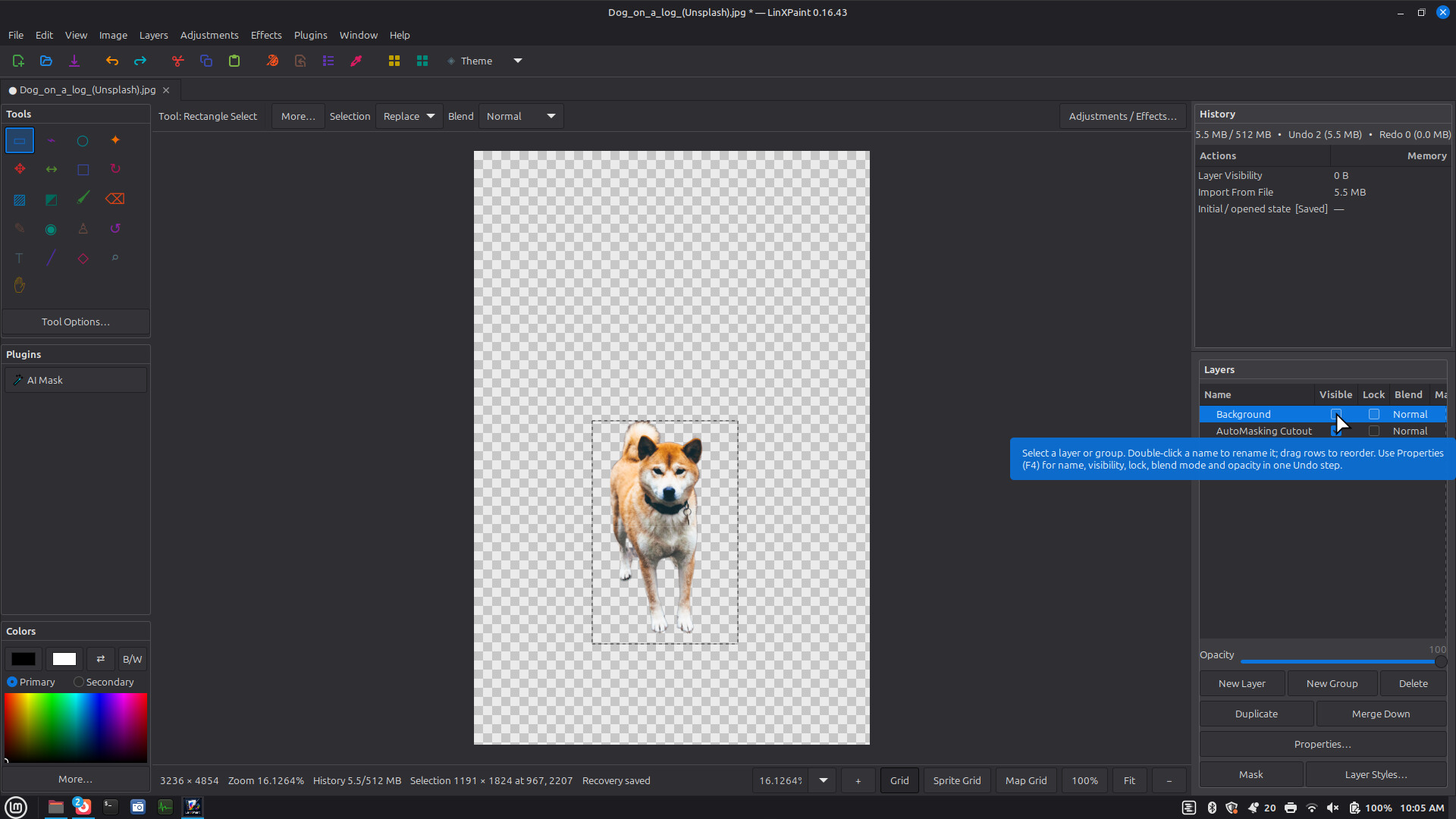
Transparent image areas are displayed using a checkerboard background.
The checkerboard is optimized to render only the visible canvas region rather than unnecessarily traversing an entire large document.
D&D / VTT BATTLE-MAP GRID
LinXPaint includes a dedicated graph-paper system for tabletop RPG and virtual tabletop map creation.
The grid is a non-destructive overlay and does not alter artwork unless explicitly baked.
Included presets:
- 50-pixel squares
- 70-pixel squares
- 100-pixel squares
- 1-inch squares based on document DPI
Grid styles include:
- Standard/custom
- Blueprint
- Sepia
Configurable grid properties include:
- Cell size
- Major-line frequency
- Horizontal offset
- Vertical offset
- Line color
- Major-line color
- Opacity
- Line weight
- Major-line weight
Additional map features include:
- Show/hide grid
- Snap construction tools to grid intersections
- DPI-based physical sizing
- Bake Grid to New Layer
- Undoable grid baking
Because the working grid is an overlay, it can be used for alignment without appearing in exported artwork.
THIRD-PARTY PLUGIN PLATFORM
LinXPaint includes a full plugin system using .lxplugin packages.
Plugin management features include:
- Install Plugins
- Automatic plugin discovery
- Enable plugins
- Disable plugins
- Remove plugins
- Reload individual plugins
- Reload all plugins
- Open Plugins Folder
- Live plugin status
- Load-failure reporting
- Failure containment so a bad plugin does not need to crash the editor
Plugin packages use a validated manifest and API.
PLUGIN PERMISSIONS
Plugins explicitly request capabilities rather than automatically receiving unrestricted application integration.
Supported API permission areas include:
- User-interface integration
- Theme integration
- Document integration
PLUGIN UI INTEGRATION
Plugins can register quick-access actions directly in LinXPaint's Plugins utility.
Plugin actions can define:
- Action labels
- Icons
- Tooltips
- Display order
- Current-document callbacks
PLUGIN DOCUMENT EDITING
Authorized plugins can:
- Access a Pillow copy of the active layer
- Process that image
- Replace the resulting layer
- Commit the modification as one normal LinXPaint Undo action
PLUGIN THEMES
Plugins can interact with LinXPaint's theme API.
A ready-to-install Theme Switcher example plugin is included with the source distribution.
PLUGIN DEPENDENCIES
Third-party plugins can carry private Python dependencies inside their own vendor/ directory.
LinXPaint does not automatically run pip or unexpectedly modify the user's Python installation.
PLUGIN DEVELOPMENT DOCUMENTATION
The package includes dedicated documentation covering:
- Plugin manifests
- Permissions
- Python entry points
- Quick-access actions
- Theme integration
- Document integration
- Vendored dependencies
- Plugin packaging
- Plugin installation
LARGE-IMAGE OPTIMIZATION
LinXPaint includes a number of safeguards intended to prevent large projects from needlessly consuming memory or freezing the interface.
These include:
- Stream-compressed history snapshots
- Row-band image snapshot processing
- Lazy one-layer-at-a-time document geometry capture
- Streamed whole-image filter commits
- Compressed reusable filter-preview originals
- Bounded advanced-blend processing stripes
- Bounded perspective-transform stripes
- Adaptive preview debouncing
- Adaptive composite-cache limits
- Automatic avoidance of oversized persistent composite caches
- Reduced-memory large-image processing
- Draft-quality previews where appropriate
- Full-quality final application
BACKGROUND PROCESSING
Heavy operations can run outside GTK's main interface thread.
Worker-backed operations include large:
- Adjustments
- Effects
- Image geometry operations
- Layer Rotate / Zoom
- Save
- Export
- Multi-image layer imports
- Large raster file opening
- .lxp project opening and recovery
Background jobs provide:
- Per-document job ownership
- Progress reporting
- Safe cancellation checkpoints
- Protection against simultaneous conflicting edits
- Stale-preview rejection
- Replaceable preview jobs
- Latest-result-wins behavior
This helps keep the application interface responsive while expensive image operations are being calculated.
LIVE PREVIEW SYSTEM
Many LinXPaint operations remain editable until the user explicitly commits them.
Live-preview editing is available for areas including:
- Text
- Line/Curve
- Shapes
- Gradients
- Paint Bucket
- Magic Wand
- Adjustments
- Effects
- Layer Rotate / Zoom
Changing settings updates the current preview instead of creating dozens of permanent intermediate changes.
Apply or Finish creates the final history action.
Cancel or Escape restores the original state.
RESPONSIVE REAL-TIME FILTER FEEDBACK
Adjustment and effect preview calculations use adaptive debouncing and cancel superseded calculations when settings are changed rapidly.
Older calculations are prevented from replacing a newer result.
The currently visible preview remains in place while the newest result is calculated, helping prevent distracting flashes back to the original image.
KEYBOARD-FRIENDLY WORKFLOW
LinXPaint includes extensive shortcuts for editing, tools, zoom, navigation, selections, layers, utilities, and document management.
Examples include:
- Ctrl+N — New
- Ctrl+O — Open
- Ctrl+S — Save
- Ctrl+Shift+S — Save As
- Ctrl+Alt+S — Export Flattened Image
- Ctrl+Z — Undo
- Ctrl+Y — Redo
- Ctrl+X — Cut
- Ctrl+C — Copy
- Ctrl+Shift+C — Copy Merged
- Ctrl+V — Paste
- Ctrl+Shift+V — Paste into New Layer
- Ctrl+Alt+V — Paste into New Image
- Ctrl+A — Select All
- Ctrl+D — Deselect
- Ctrl+F — Repeat Last Effect
- Ctrl+0 — Fit to Window
- Ctrl+1 — Actual Size
- Ctrl+Shift+B — Zoom to Selection
- Ctrl+Tab / Ctrl+Shift+Tab — Switch documents
- F5 — Tools
- F6 — History
- F7 — Layers
- F8 — Colors
- Ctrl+Shift+N — New Layer
- Ctrl+Shift+D — Duplicate Layer/Group
- Ctrl+M — Merge Down
Direct keyboard shortcuts are also available for frequently used tools and for brush-size adjustment.
Keyboard handling is focus-aware, so image-editing shortcuts do not unexpectedly activate while typing in text or numeric input fields.
LINUX DESKTOP INTEGRATION
LinXPaint integrates with the Linux desktop and includes:
- GTK 3 native interface
- Linux theme integration
- Accessibility integration through GTK
- Linux input-method support
- X11/Wayland compatibility through GTK
- Desktop launcher support
- LinXPaint application icon
- .lxp MIME type registration
- Opening multiple files from the desktop/file manager
- Linux file association support
SELF-CONTAINED APPLICATION COMPONENTS
The Debian/CPython 3.13 build can carry application-local copies of major Python image-processing dependencies including:
- Pillow
- NumPy
- Pycairo
GTK 3 and PyGObject remain distribution-managed Linux desktop components so LinXPaint can use the system's compatible theme, display, accessibility, input, Wayland/X11, and security-updated GTK stack.
Download
Click download now to get access to the following files:
Development log
- New toolbar for the tools options.1 hour ago
- Updated the tools options menu.6 hours ago
- Found a few more optimization opportunities.10 hours ago
- Optimization fixed.13 hours ago
- The magic wand tool is not working as intended.13 hours ago
- Performance issues.14 hours ago
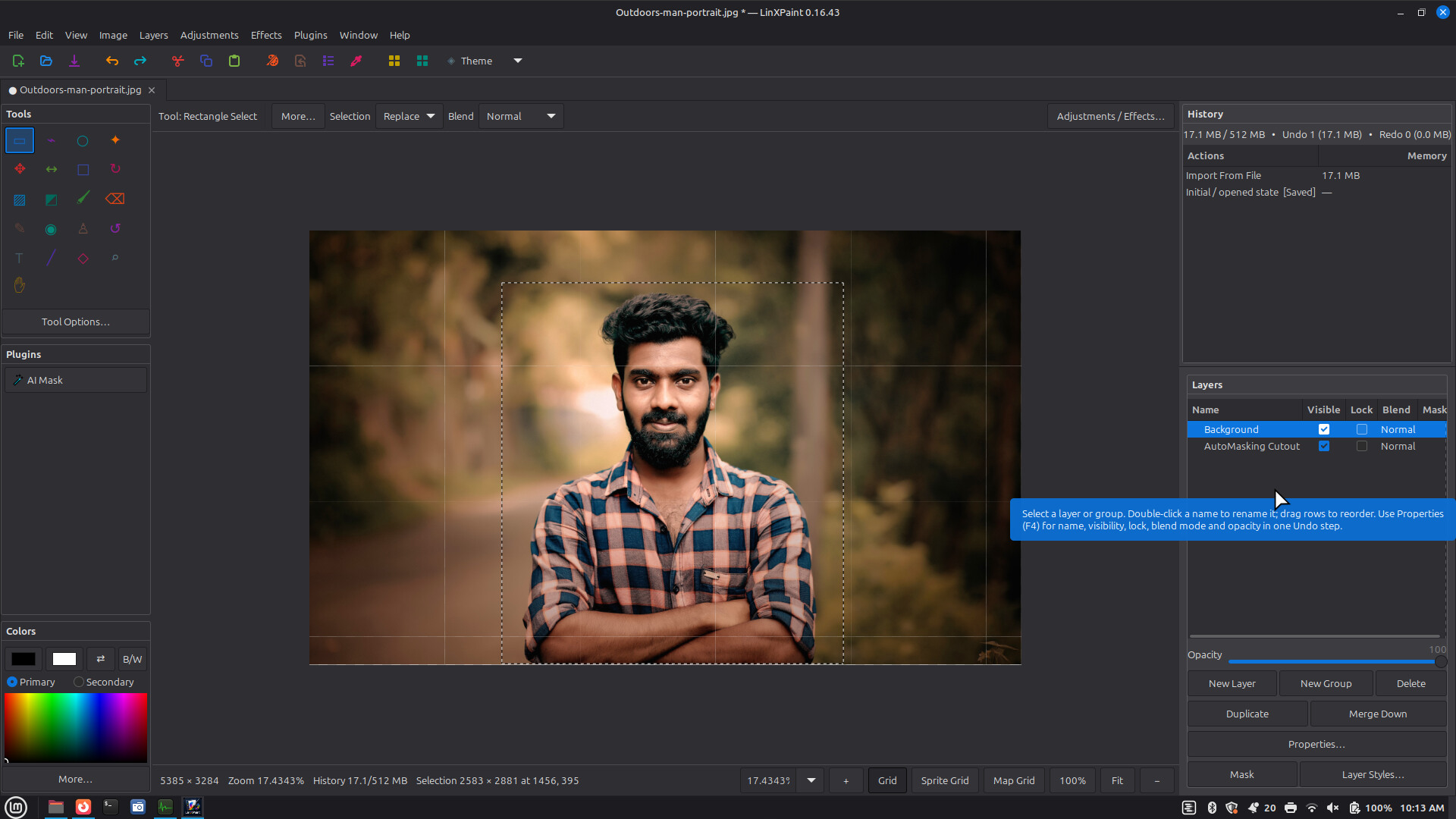
- Added an optional Local AI Masking plugin.14 hours ago
- Huge performance increase.16 hours ago
Leave a comment
Log in with itch.io to leave a comment.